Connect Spotify to Vyera
Optional · takes about three minutes, once · updated 24 September 2026
Vyera already works with Spotify without any of this. Connecting your account adds a few extras. Here's what you get, what you need, and every step.
Works without connecting
- The glow reacts to Spotify's audio
- Colors from the album art
- Synced lyrics
- Play, pause, next and previous
Connecting adds
- Tighter lyric timing, read from Spotify itself
- Seeking in Spotify by clicking the progress line
- Starting your playlists and Liked Songs from Vyera
- Exact track matching for lyrics
What you need
- Spotify Premium. Spotify requires Premium for personal developer apps like the one you'll make below. On a free account, the connection won't work.
- A Spotify developer account. It's free, and it's the same login you already use for Spotify. You'll accept Spotify's developer terms the first time you open the dashboard.
- Vyera on your PC, and a browser.
Set it up
-
Open the Spotify developer dashboard
Go to developer.spotify.com/dashboard and log in with your Spotify account. If it's your first visit, accept the developer terms and verify your email if Spotify asks. Then click Create app in the top right.

-
Create an app
Fill in the form:
App nameVyeraApp descriptionVyera on my PCWebsiteLeave it emptyRedirect URIhttp://127.0.0.1:5543/callbackAPIs usedTick Web APIPaste the redirect URI, then click Add next to it. The address should move up above the box, as in the picture below. It must match exactly:
127.0.0.1(Spotify rejectslocalhost),httpnot https, and/callbackat the end.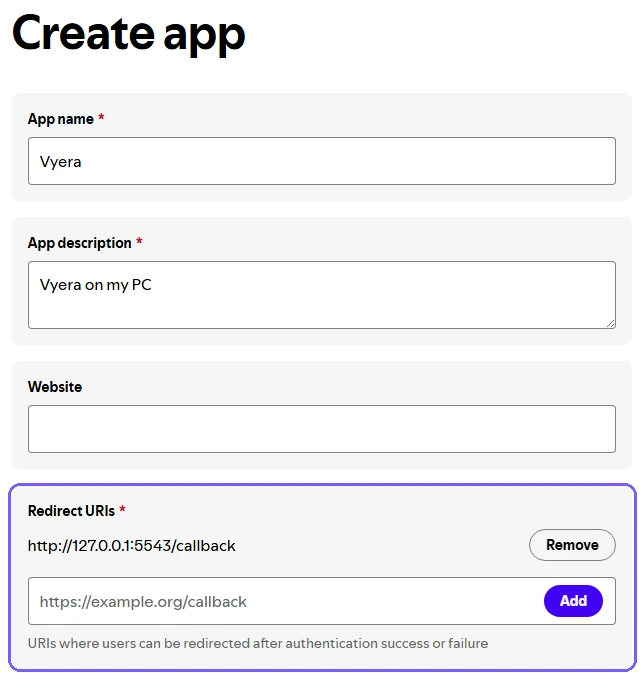
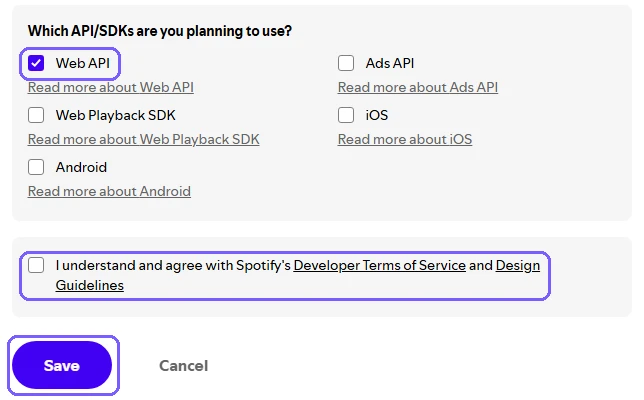
Further down, tick Web API, tick the box agreeing to Spotify's terms, then click Save.
-
Copy your Client ID
After saving, open your new app (click it on your dashboard) to reach its Basic Information page. Copy the Client ID, a 32-character code, with the copy icon next to it.
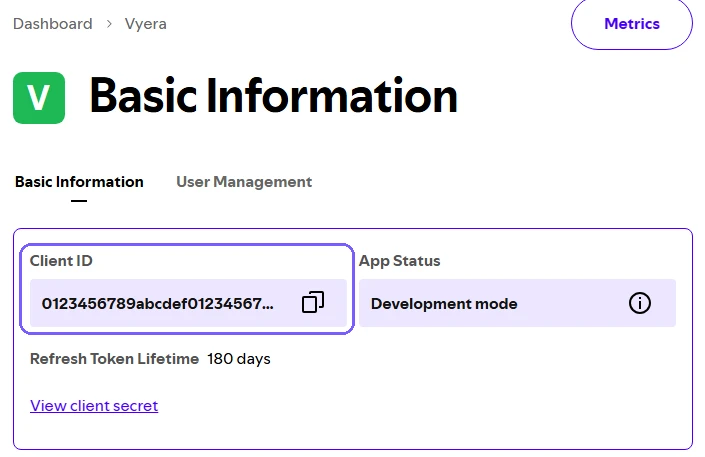
Example ID shown. Yours will be different. Don't copy the Client secret. Vyera never asks for it, and you shouldn't give it to anyone.
-
Paste it into Vyera
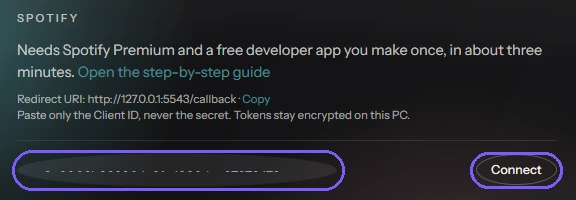
Open Vyera's settings and go to Media. Turn on Connect to Spotify, paste the Client ID into the box, and click Connect. The Open the step-by-step guide link there brings you back to this page.
-
Allow access
Your browser opens Spotify's permission page, showing the app name you chose. Click Agree within three minutes. Then go back to Vyera: it should say Connected, and once a song plays it shows the artist and title. If nothing is playing, it says Connected — nothing playing on Spotify right now.
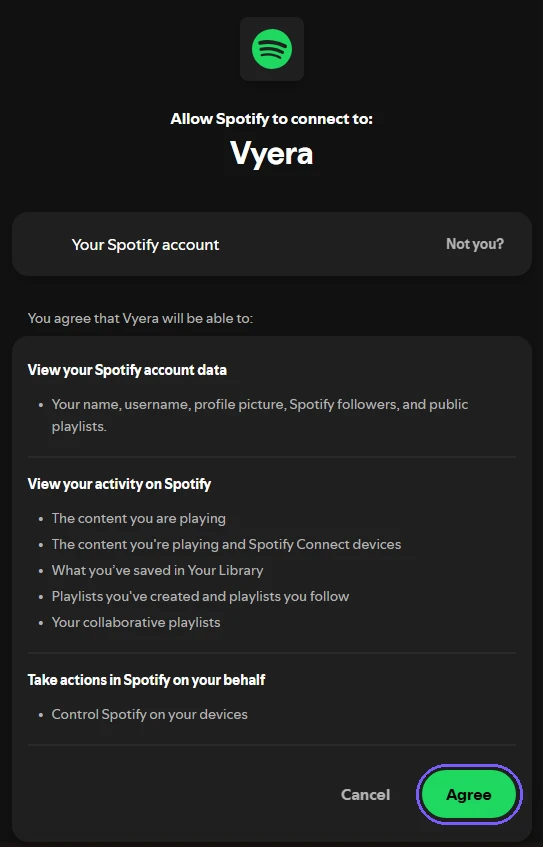
What Vyera can do with your account
Spotify's permission page lists these. In plain words, Vyera can:
- See your basic profile. Spotify lists this for every app; Vyera only uses your user ID, to open Liked Songs
- See what's playing and how far into the track you are
- Control playback: play, pause, skip and seek
- Read your playlists and Liked Songs, so you can start them from Vyera
It doesn't post anything, follow anyone, or change your library or playlists.
If something goes wrong
| What you see | What to do |
|---|---|
INVALID_CLIENT: Invalid redirect URI on Spotify's page | The redirect URI in your app doesn't match. In the dashboard, click your app, scroll down, click Edit, and make it exactly http://127.0.0.1:5543/callback. Save, then click Connect again. |
INVALID_CLIENT: Invalid client on Spotify's page | The Client ID in Vyera is wrong or has a stray space. Copy it again from your app's Basic Information page and paste it back in. |
| Vyera says "Authorization was denied or timed out" | You clicked Cancel, or more than three minutes went by. Click Connect again. |
| Vyera says "Connection failed" and mentions an address or port | Another program is using port 5543, often a second copy of Vyera. Close it and try again. |
| It connects, but nothing updates or playlists won't start | Check that the Spotify account that owns the app has Premium, and that Spotify is actually playing on this PC. |
| "Connected — nothing playing on Spotify right now" | Everything's working. Play something in Spotify. |
| "Connected for reading only" | Your connection is from an older version of Vyera. Click Connect once more to allow playback control and playlists. |
| "Session expired — click Connect" | Spotify ended the session. Click Connect again. You don't need a new app. |
Privacy
- Vyera never has your Spotify password. You sign in on Spotify's own page.
- The sign-in token is stored only on this PC, encrypted for your Windows account, and deleted when you uninstall Vyera.
- To disconnect, turn off Connect to Spotify. To revoke access completely, go to spotify.com/account/apps, or delete the app in the developer dashboard.
- Keep the app for yourself. Spotify caps these personal apps at five users, and anyone else would have to be added by hand. It's easier for them to follow this guide themselves.
The full policy is on the privacy page.